GstarCAD 2027 USB Dongle Guide
GstarCAD 2027 USB Dongle Guide
Contents

USB Dongle Bind License
Bind License Online
Instruction: Your computer has internet connected or you can find a computer with internet connected.
-
Insert your USB dongle to your computer. (The Network USB dongle driver needs to be installed for Network USB dongle)
-
Click Start button and find out USB Dongle License Tool in GstarCAD 2027 folder.

- The interface of the USB Dongle License tool is shown below:

On the left side, you can select Standalone Dongle, Network Dongle, Online mode, and Offline mode.
There are two dongle types for GstarCAD standalone dongle: Living and Moway. It will identify your dongle type automatically when inserting the USB dongle.
- Choose Online method under Standalone Dongle tab (For Standalone USB Dongle) or Network Dongle tab (For Network USB Dongle) according to your USB dongle encryption mode and click Bind button.

- Input the License key and click Bind button.

- Click OK button to finish binding.

- You will see the detail product information after successfully binding the license key to your USB dongle.

Bind License Offline
If your computer is not connected to the internet, you can choose offline mode to bind license to your USB dongle.
Instruction: Your computer hasn't internet connected and your USB dongle is not allowed to unplug from your computer.
-
Run GstarCAD 2027 and access GstarCAD License Manager from Help-Register on your computer.
-

Click Dongle Upgrade(U) ,select the corresponding version and click GENERATE to generate .LOVX file, save it to your USB flash drive.
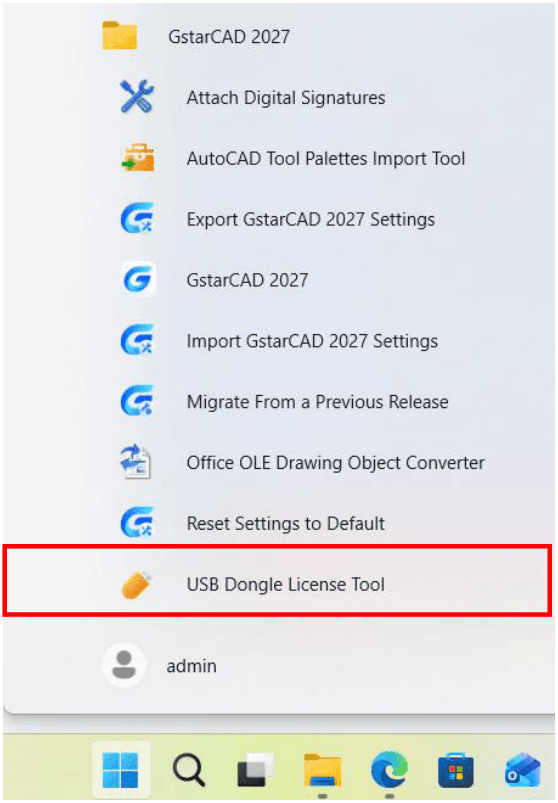
Go to another computer with internet connected, run USB Dongle License Tool (not necessary to down the tool package if the computer installed GstarCAD 2027 )
-
Click Offline method under Standalone Dongle tab (For Standalone USB Dongle) or Network Dongle tab (For Network USB Dongle) according to your USB dongle encryption mode.
-
Click Load Request File to load the .LOVX file you saved in your USB flash drive. Then click Bind button.

Input the License key and click Bind button.
- Click OK button to finish binding.

-
You will see the detail product information after successfully binding the license key to your USB dongle.
-
Click Generate Upgrade File button in USB Dongle Tool to generate LIVX file.
-
Back to GstarCAD License Activation window from your computer, Load the LIVX file generated from last step and Click Upgrade button.

USB Dongle Activation
Standalone USB Dongle Activation
After binding the license key with product information to your standalone USB dongle, run GstarCAD License Manager which you can access from Help menu and register in GstarCAD 2027. Click Standalone Dongle(S) and select a version of GstarCAD (Professional, Standard, Plus and Education).

Then click Activate button to finish the standalone dongle activation. Then restart your GstarCAD 2027.

Network USB Dongle Activation
After binding the license key with product information to your Network USB dongle, please make sure the Network USB Dongle drive is installed and the Network USB dongle is inserted to server computer. Run GstarCAD License Manager which you can access from Help menu and register in GstarCAD 2027. Click Network Dongle(T) and select a version of GstarCAD (Professional, Standard, Plus and Education).

Specify server IP address, then click Activate button to activate your software at client.

Standalone Dongle Upgrade
Standalone Dongle Upgrade Online
If your encryption is Standalone Dongle (2012 and above version) and you have upgraded your software, then you must upgrade your dongle so that you can activate your new version. You can follow these steps to upgrade your dongle online.
Instruction: Your computer has internet connected or you can find a computer with internet connected.
-
Insert your USB dongle to your computer.
-

Access USB Dongle License Tool from Start button (Not necessary to download the USB Dongle License Tool package if the computer installed GstarCAD 2027).
-
Send the license key which you need to upgrade in your USB Dongle to your local distributor/reseller from whom you purchased GstarCAD products with the order invoice.
-
You will get the reply after the License Key upgraded.
-
Insert the dongle and access USB Dongle License Tool and click Upgrade or Synchronize button to upgrade your USB Dongle.

- You will see the detail product information after successfully upgrading the license key to your USB dongle.
Standalone Dongle Upgrade Offline
Instruction: Your computer hasn't internet connected and your USB dongle is not allowed to unplug from your computer.
-
Insert your USB dongle to your computer.
-
Run GstarCAD 2027 and access GstarCAD License Manager from Help-Register.
-
Click Dongle Upgrade(U) ,select the corresponding version and click GENERATE to generate .LOVX file save it to your USB flash drive.

-
Go to any computer with internet connected, run USB Dongle License Tool (not necessary to down the package if the computer installed GstarCAD 2027 )
-

Click Offline and click Load Request File to load the .LOVX file you saved in your USB flash drive.
-
Send the License Key which you need to upgrade in your USB Dongle to your local distributor / reseller from whom you purchased GstarCAD products with your order invoice.
-
You will get reply after License Key upgraded.
-
Click Upgrade button in Standalone Dongle - offline from USB Dongle License Tool.
-

Click Generate Upgrade File button to generate .LIVX file, save it to your USB flash drive.
-
Back to your computer and Insert USB flash drive and click LOAD button to load the .LIVX file you saved from another computer in GstarCAD License Manager.
-
Click Upgrade button to finish your USB dongle upgrading.

Network Dongle Upgrade
Network Dongle Upgrade Online
If your encryption is Network Dongle (2012 and above version) and you have upgraded your software, then you must upgrade your dongle so that you can activate your new version. You can follow these steps to upgrade your dongle online.
Instruction: Your computer has internet connected or you can find a computer with internet connected.
-
Install Network USB Dongle drive and then insert your Network USB dongle to your computer.
-

Access USB Dongle License Tool from Start button (Not necessary to download the USB Dongle License Tool package if the computer installed GstarCAD 2027).
-
Send the License Key which you need to upgrade in your USB Dongle to your local distributor / reseller from whom you purchased GstarCAD products with your order invoice.
-
You will get the response after the License Key upgraded.
-
Insert the dongle and access USB Dongle License Tool again and click Upgrade or Synchronize button to upgrade your USB Dongle.

- You will see the detail product information after successfully upgrading the license key to your USB dongle.
Network Dongle Upgrade Offline
If your encryption is Network Dongle (2012 and above version) and you have upgraded your software, then you must upgrade your dongle so that you can activate your new version. You can follow these steps to upgrade your dongle online.
Instruction: Your computer hasn't internet connected and your network USB dongle is not allowed to unplug from your computer.
-
Install Network USB Dongle drive to your computer.
-
Please go to GstarCAD 2027 installation file location, and run DongleUpgradeTool.


- Click GENERATE button to generate the request file with the extension .LOCX. Save it to your USB flash drive.

-
Run GstarCAD USB Dongle License Tool (not necessary to download and install this tool if the computer installed GstarCAD 2027) from any computer with internet connected.
-

Click Load Request File from Network Dongle tab - Offline option to load the LOCX file you saved in the USB flash drive.
-
Send the License Key which you need to upgrade in your USB Dongle to your local distributor / reseller from whom you purchased GstarCAD products with your order invoice.
-
You will get the response after the License Key upgraded.
-
Click Upgrade and Generate Upgrade File button from Network Dongle tab - Offline option to generate the .LIVX file from the computer with internet connected and save it to your USB flash drive.

- Back to your computer and Insert USB flash drive and Run DongleUpgradeTool again from GstarCAD 2027 installation file location, please click LOAD button to load the .LICX file you saved from another computer in GstarCAD License Manager.

- Run GstarCAD License Manager from Help-Register in GstarCAD 2027. Choose the Network Dongle(T) option and the corresponding version. Input the server Name/IP and click Activate button to activate your Network USB dongle.