GstarCAD 2027 Flexnet Network License Upgrade
GstarCAD 2027 Flexnet Network License Upgrade
Contents
- #Return the Old Network License
- #Uninstall Old GstarCAD Network License Manager
- #Install GstarCAD 2027 Network License Manager
- #GstarCAD 2027 Network License Activation and Settings
- #Problem Solutions

GstarCAD 2027 Network License Manager Notes
To avoid versions conflicting, if an old GstarCAD Network License Manager version installed on server computer before, please return the network license first, uninstall the old GstarCAD Network License Manager and then install GstarCAD 2027 Network License Manager, Please follow the steps below:
Return the Old Network License
Stop Old GstarCAD Network License Service
First of all, please run old LMTools, click Stop Server button to stop the service. Please pick the option Force Server Shutdown if the service was not stopped successfully. You may pick up the option Force Server Shutdown.

Online Return
Instruction: Make sure your server computer connects to the internet.
Upgrade network license to latest version or activate in another server are allowed only after GstarCAD network license returned. You can return your GstarCAD network license from GstarCAD License Manager (Server) which you can access from Start-all button.
- In GstarCAD License Manager (Server), Click the GstarCAD license and click Return button.


- The Return Dialog box will pop up and the Serial Number will be read automatically, click Return On-Line button to generate the return file. The license will be returned at once.

Manual Return
- If your computer is not connected to the internet, you can click click here to return the license manually.


-
In return dialog box, the SN will automatically read, you can click Generate to generate a return file with the -return.xml extension.
-
There are 2 ways to acquire response file with the saved request file:
Option 1: E-mail
You can send the return file from any computer with internet connected to your local GstarCAD distributor to get the license file.
Option 2: Online Service
You can access GstarCAD online service center from any computer with internet connected to download the license file.
- Login to GstarCAD online service center: http://support.gstarcad.net/flexnet/login.html with your GstarCAD Network Serial Number.

- Click the Return License button to continue.

- Choose the return request XML file you saved and click Submit to upload the return file.

- Download the Response XML from License Management tab.

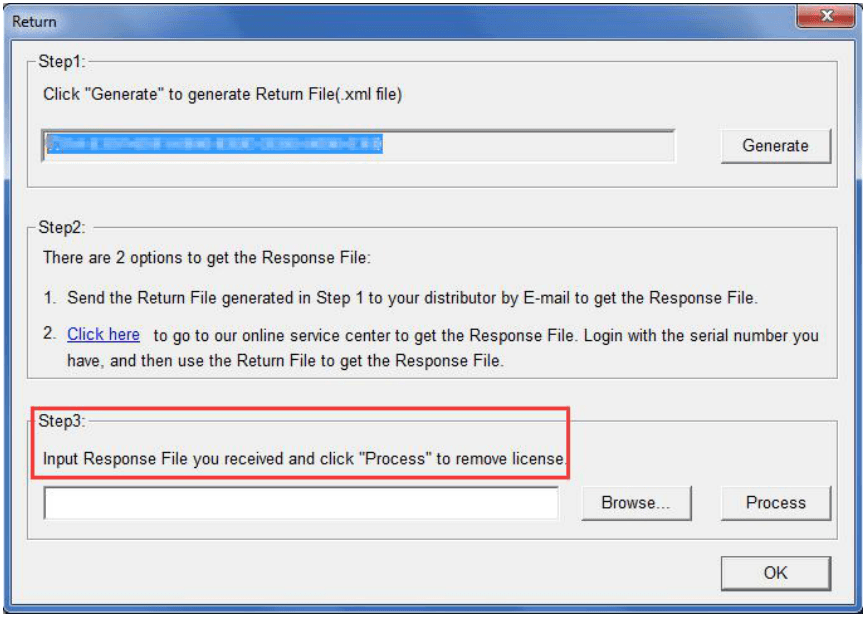
Back to your computer and find out GstarCAD License return wizard, please click the Browse button and select the license file you have just downloaded and saved from another computer with the -resp-return.xml extension, and then click the OK button.
- After a few seconds, your GstarCAD license has been cleaned.
Uninstall Old GstarCAD Network License Manager
Please follow the steps below to uninstall old GstarCAD Network License Manager Tool.
- Click Start button and find out GlmServer(GstarCAD License Manager Server) folder, uninstall it with administrator privileges.

- Click Yes to remove GlmServer completely.

Install GstarCAD 2027 Network License Manager
Gstarsoft Network License Manager (GNLM) is a centralized network license management platform developed by GstarCAD Software. It supports data management on Windows platform. This tool provides core functions such as real-time monitoring, multi-dimensional data analysis, refined permission control, and intelligent trouble shooting, enabling visual management of CAD licenses and resource optimization configuration.
Please follow the steps below to install and set the configurations:
Double click "GNLM_Setup.exe" to install Gstarsoft Network license Manager.

You can click Yes to continue the installation.

You can choose whether start the server immediately or start it later.

You will find a tray icon with exclamation mark shown in the taskbar after installation has been completed. And there will be a tip like “Service is not found. Please check your settings” before you set the configurations.


Configuration Settings
After the Gstarsoft Network License Manager is installed, click the Gstarsoft Network License Manager icon and click Options to set the configurations.

Set the configurations as below:

- System:
Run this manager when Windows startup: When this option is checked, the Gstarsoft Network License Manager can be run automatically when Windows starts.
Remark: "Run this manager when Windows startup" option will not affect the license status.
- License service:
Log Path: You can specify a path to save the license logs and the path should allow LocalService to write in, otherwise the license service will fail to run. If your operation system is Windows 10, the default path ProgramData is recommended.
System port: The valid range should among 1024-64000.
License Port: The valid range should among 27000-27009.
After the configurations have been confirmed, the exclamation mark will change to check mark.

GstarCAD 2027 Network License Activation and Settings
Online Activate
Instruction: Make sure your computer connect to the internet.
Click Gstarsoft Network License Manager icon and select License Manager option.

Click License Management → Online Activation button.

Input the License Key and click confirm button.

Then you will find the activated license shows in the license manager list.


Note: For Windows Server operation system, if it prompts "Session does not exist" when activate GstarCAD Network license online via Gstarsoft Network License Manager, please check the following solution:
-
Open Internet Explorer (IE) and select Internet Options and then click Trusted sites from Security tab.
-
Add the following two sites to the trusted sites.
- Click OK button to save the security settings. Then you can activate or return GstarCAD network license online normally.
Manual Activation
Instruction: If your computer is not connected to the internet, you can use activation file (xml file) to activate your GstarCAD 2027 Network license manually.

Click Gstarsoft Network License Manager icon and select License Manager option.
Click License Management → Manual Activation button.

Please follow the three steps in this dialog box to activate manually.
Steps 1:
Input the License Key and click Create Request button to generate the request file.


Steps 2:
Please access GstarCAD online service center: https://license.gstarcad.net/ and login with the License Key from a computer with internet connection.

Please Input your license key heree
Then click Activate button in Activation tab.

Click the Choose File button and select the request file you have saved and click the Submit button to continue.

Click the Download button and save the license file (Response XML File). We recommend you to store the license file to your USB flash drive.

Steps 3:
Back to your computer and find out License manager option from Gstarsoft Network License Manager. Please click the Import Response button and select the license file you have just downloaded and saved from another computer, and then click the OK button to finish the activation.


Network License Manager Settings
Gstarsoft Network License Manager General Settings
Click Gstarsoft License Service icon and select License Manager option to load Network license manager box.
To ensure that user permissions can be set smoothly, the following operations must be completed before managing the network license permission. Click Settings button in the up-right of the interface.

Language: English/Chinese (the default is based on the user's system language).
After adjusting the language settings, if you need to switch back to the default language, you need to manually set it.
Update Duration: Customize the interval for NLAT to read data from the server. The default is 10 minutes, the minimum is 1 minute, and the maximum is 2147483647 minutes.
User Information Display Mode: Control the mode in which user information is displayed on the permission setting page. The default mode is user name.
OPT File Path: If you need to set up user authorization number permissions, reserve nodes, and other settings, enter the correct OPT file path, otherwise you do not need to fill in the information.
Intelligent Export: Through in-depth analysis of user operation habits, the following key indicators are intelligently generated to provide data support for authorized resource management and procurement decisions. Key indicators include: total number of users, daily usage peak, average usage peak, average number of days of user use, and average user usage time.
This function is not yet fully complete, please wait for subsequent version updates.
License Management
On this page, you can activate, return and repair authorization, and view other authorization information.
You can activate, return the GstarCAD network licenses online or manually, you can repair the license when it shows error message in license manager. The users whom are sharing your network license and lend detail also can be found in license manager.

Feature list in License Manager:
Refresh: Refresh the GstarCAD network license status.
Online Activation: Activate the GstarCAD network license online. Ensure that your computer is connected to the Internet. After pasting or entering the license code, click 'OK' to activate the license.
Manual Activation: Manually activate the GstarCAD network license. If your computer cannot connect to the Internet, you can manually activate the network license by following the instructions.
Online Return: Return the GstarCAD network license online. Ensure your computer is connected to the Internet to return the license, and then you can use this network license to activate it on this or another machine.
Manual Return: Manually return the GstarCAD network license. If your computer cannot connect to the Internet, you can manually return the network license according to the operation prompts.
Online Repair: Repair the GstarCAD network license online. Ensure your computer is connected to the Internet. If there is an unexpected problem with the user's authorization, such as modifying the system time and other operations that cause the authorization to become invalid, you can try to repair it.
Manual Repair: Manually repair the GstarCAD network license. If your computer cannot connect to the Internet and the authorization fails unexpectedly, such as modifying the system time and other operations causing the authorization to become invalid, you can try to repair it.
License Details: Show detailed information about the licenses in use. Displays information about users who are connected to the server and occupying licenses, including user name, machine name, quantity, and time.
Borrowed Details: Show detailed information about the borrowed network licenses. Displays user information for those who borrow the network licenses, including the rental license ID, machine name, rental expiration date, etc.
Adjust Gstarsoft Network License Service

Start Service: Starts Gstarsoft License Service, other users whom with the permission can borrow or lend the licenses from the server.
Stop Service: Stop Gstarsoft License Service, other users whom with the permission will not allowed to borrow or lend the licenses from the server.
Restart Service: When the service meets some problems, you can try to restart it.
If you need to do any changes on your license, please stop service first and restart service after the operation have been done.
If you need to do any changes on your license, please stop service first and restart service after the operation have been done.
For other settings, please refer to the Gstarsoft Network License Manager Guide
Problem Solutions
- For Windows Server operation system, if it prompts "Session does not exist" when activate GstarCAD Network license online via GstarCAD Network License Manager, please check the following solution:
- Open Internet Explorer (IE) and select Internet Options and then click Trusted sites from Security tab.

- Add the following two sites to the trusted sites.
- Click OK button to save the security settings. Then you can activate or return GstarCAD network license online normally.
-
Some security software (such as anti-virus software) may cause GstarCAD Network License Manager run abnormally; In this case, you can either quit the security software or add GstarCAD Network License Manager to the trusted path.
-
The server computer name should be in English.