GstarCAD 2020 PDF2DXF Guide
GstarCAD 2020 PDF2DXF Guide
Contents
- #1. PDF to DXF License Type
- #2. License Key Activation
- #3. USB Dongle Activation
- #4. License Key Return
- #5. Network Licenses Borrow and Return
PDF to DXF Activation and License Return
PDF to DXF is a third party application which could convert PDF file format to DXF file format. As a plug-in, PDF to DXF is not included in the current GstarCAD encryption system. You can activate it after 30 days free trial expired to enjoy the perpetual License.
1. PDF to DXF License Type
- After you install GstarCAD 2020 and start up software, click PDF to DXF in Express tab.

- Then the following interface will pop up. After 30 days free trial, you need to activate it to use all the functionalities in PDF to DXF.

- If you already have a valid license key or a USB dongle you can activate the software directly by selecting Activate. Click Activate button to get a permanent license.
In the GstarCAD License Activation wizard, we provide 2 ways for you to activate PDF to DXF: License Key and USB Dongle.

2. License Key Activation
You need a valid license key (serial number e.g. 662E-DE07-0000-0050-8DBE-74A4-0000-0030) to activate your PDF to DXF, or you can get/borrow a network license from an existing license server.
There are 4 activation types:
Online Activation: Activate license online
Manual Activation: Activate license manually
Network License: Get license from a network license server
Borrow License: Borrow license from a network license server
2.1. Standalone License key Online Activation
Instruction: Make sure your computer is connected to the internet.
- Click Online Activation (O) under License Key (L).

- Input your license key (serial number) and click the Activate button.

- After a few seconds the following message appears. Click OK button to finish the activation.

2.2. Standalone License Key Manual Activation
Instruction: If your computer is not connected to the internet, you can use activation file (xml file) to activate your PDF to DXF manually.
- Click Manual Activation (M) under License Key(L).

- Input your license key (serial number) and click the GENERATE button to get the request file and save it.


- There are 2 ways to acquire license file with the saved request file:
Option 1: E-mail
You can send the request file from any computer with internet connected to your local GstarCAD distributor to get the license file.
Option 2: Online Service
You can access GstarCAD online service center from any computer with internet connected to download the license file.
(1) Login to GstarCAD online service center: http://support.gstarcad.net/flexnet/login.html
(2) Input your license key (serial number) and click the Login button to continue.

(3) Click the Activate button to continue.

(4) Click the Choose File button and select the request file you have saved and click the Submit button to continue.

(5) Click the Download button and save the license file (Response XML File). We recommend you to store the license file to your USB flash drive.

- Back to your computer and find out GstarCAD License Activation wizard, please click the LOAD button and select the license file you have just downloaded and saved from another computer, and then click the Activate button.

- After a few seconds the following message window appears. Click the OK button to finish the activation.

2.3. Network License Key Activation
Network Activation enables you to share a number of PDF to DXF licenses on your office LAN. It gives flexibility of license floating among a working group. Before the network installation, the following confirmation is required:
-
Information of product you want to purchase, including version language, version type and the quantity of licenses.
-
Specify server computer to install and execute GStarLMS.exe.
2.3.1. Network License Manager Installation
- If it is your first time to install GstarCAD Network License Manager, please follow the steps below:
(1) Double click GstarCAD_LMS on the specified server computer, the following window opens, Click Next to specify the installation directory of GstarCAD Network License Manager.

(2) Click Install after specifying the directory.

(3) Check the first option in the window below, click Next and Finish to finish programming language maintenance.


(4) Click Finish to complete the GstarCAD Network License Manager installation.

- If you installed GstarCAD Network License Manager before, please follow the steps below:
(1) Double click GstarCAD_LMS on the specified server computer, the following window opens, click Next to continue.

(2) Click Upgrade and click Next to continue GstarCAD Network License Manager upgrading.

(3) Check the first option in the window below, click Next and Finish to finish programming language maintenance.

(4) Click Finish to complete the GstarCAD Network License Manager installation.

- After the installation is finished, a utility program group called GstarCAD Network License Manager is added to Windows Programs in which you will find:

GstarCAD License Manager (server): Managing the list of licenses on the server computer.
LMTools: A tool which is used to manage license server for network.
Uninstall:Uninstall program.
Click GstarCAD License Manager (server) to set license server.
2.3.2. Network License On-line Activation
Instruction: make sure your computer connect to the internet.
- Click to run GstarCAD License Manager (server). Click Activation button.


- Input your Serial Number and specify the quantity of license, then click Activate On-line button.

- Click the OK button to close the Activation successful window.
2.3.3. Network License Off-line Activation
- Click to run GstarCAD License Manager (server). Click Activation button.

- Click “click here” to open the manual Activation guide.

- Then the following window open:

- Enter Network License Serial Number which is provided to you when you purchase PDF to DXF, and the quantity of License you purchased. Click Generate to generate Request file with a file name consists of the Network License Serial Number and .xml extension.
(e.g.3401-DF07-0000-0100-C9D9-9801-0000-0400.xml)

- Click Save to save the generated Request file to the local computer.

- Go to another computer with internet connection and use the Request file you have saved to acquire a corresponding Activation File via one of the two options as follow.
Option 1: E-mail
You can send the generated Application File to your distributor to get the Activation File.
Option2: online service
You can go to the GstarCAD online service center (“http://support.gstarcad.net/flexnet/login.html”) to get the Activation File.
(1) Log in the GstarCAD online service center (“http://support.gstarcad.net/flexnet/login.html”) by the computer with internet connection. Input the Serial Number and click the Login button to continue.

(2) Click the Activate button to continue.

(3) Click the Choose File button to select the Request file you have saved and click Submit to continue.

(4) Click the Download button and save License file to the location which you have chosen.

- After you receive the License file, restart Activate window and click Browse to apply the License file and click the Activate button.

-
Then you can see the product information in Activation successful window. Click the OK button to finish the activation.
-
You can check your product information from GstarCAD License Manager after activation.
2.3.4. Setting
2.3.4.1. Server Setting
- Proceed to set LMTools(This utility can only be set by Administrator)

- Click the “Start/Stop/Reread” button to manage the server.

All the information of the tabs you can keep by default, you only need to operate in Start/Stop/Reread tab to manage the server.
- Click Start Server button. Now you can turn to activate the client.

You can start server either manually or automatically, it is to select Start/Stop/Reread option to control the server in Start/Stop/Reread tab or control sever automatically in Config Services tab by checking User Services and Start Server at Power Up when start the computer.
2.3.4.2. Client Setting
After server setting, you have connected server to user client. Then you can activate the PDF to DXF from user client machine.
- Click Network License (N) under License Key(L).

- Specify server IP address at Server IP Address window and click Activate button to activate your software.

3. USB Dongle Activation
You need to connect USB dongle to your computer to activate your PDF to DXF, or you can get a network license from an existing USB network license server. There are 3 types for you to activate:
Network Dongle: Get license from a USB network license server.
Standalone Dongle: Activate PDF to DXF via USB dongle connected to the computer.
Dongle Upgrade: Upgrade USB dongle connected the computer.
3.1. Network Dongle Activation
Sever Setting
You need to specify server computer and install network driver of the USB dongle

. Insert the network dongle to the USB port of your computer after the installation of PDF to DXF. The dongle will be recognized automatically.
Client Setting
- Click Network Dongle (T) under USB Dongle (D).

- Specify the IP address of server and click the Activate button to activate your software.

The quantity of nodes is reduced in server until the one using in client is to be returned.
3.2. Standalone Dongle Activation
-
Insert dongle to USB port of your computer.
-
Click Standalone Dongle(S) under USB Dongle (D).

- Then click Activate button.

4. License Key Return
4.1. Stand-alone License Key Return
When you are going to change another computer to use PDF to DXF, In order to ensure you can use this function again, you can return license before you change your computer. There are 2 types to return your license:
Online Return: Make sure your computer connect to the internet.
Manual Return: There is no need of internet connection.
Click GstarCAD License Manager from Windows Start button>All Programs>Gstarsoft>GstarCAD License Manager. Or you can click Help menu>Register


Then the following window open and click Return button.

4.1.1. Stand-alone License Key Online Return
Instruction: make sure your computer connect to the internet.
- Click Online Return (O) and select PDF to DXF license which you want to return and click the Return button.

- After a few seconds you can see the license you have selected to return has disappeared from License information, click Exit button to close the window.
4.1.2. Stand-alone License Key Manual Return
- Click Manual Return (M) and select the license which you want to return.

- Click GENERATE button to get the Request file.

- Upload Request file and get Return file and save Return file to the local computer.

- Click LOAD to load the -return.xml file and click Return button to return the license.

-
Then you can see the Status in the License Information is changed into Disabled.
-
Please note that processing file -resp-return.xml is for clearing the registration information in the workstation which you returned the license. If you want to transfer your license right to another workstation, please generate a new Request file .xml and send to us. You can see in the license manager the status is disabled.
4.2. Network License Key Return
4.2.1. Network License Key Online Return
If you want to change the server of PDF to DXF, please return the network license first. You can return your PDF to DXF network license from GstarCAD License Manager (Server) which you can access from Start-all button. You can activate it in another server only after PDF to DXF network license returned.
- In GstarCAD License Manager (Server), Click the PDF to DXF license and click Return button.


Paired PDF illustration layout — page 26

- The Return Dialog box will pop up and the Serial Number will be read automatically, click Return On-Line button to generate the return file. The license will be returned at once.

4.2.2. Network License Key Manual Return
- If your computer is not connected to the internet, you can click click here to return the license manually.

-
In return dialog box, the SN will automatically read, you can click Generate to generate a return file with the -return.xml extension
-
There are 2 ways to acquire response file with the saved request file:
Option 1: E-mail
You can send the return file from any computer with internet connected to your local GstarCAD distributor to get the license file.
Option 2: Online Service
You can access GstarCAD online service center from any computer with internet connected to download the license file.
(1) Login to GstarCAD online service center: http://support.gstarcad.net/flexnet/login.html with your PDF to DXF Network Serial Number.

(5) Click the Return button to continue.

(6) Click the Choose File button and select the request file you have saved and click the Submit button.

(5) Click the Download button and save the response file (Response XML File). We recommend you to store the license file to your USB flash drive.

- Back to your computer and find out GstarCAD License return wizard, please click the Browse button and select the license file you have just downloaded and saved from another computer with the -resp-return.xml extension, and then click the OK button.

- After a few seconds, your PDF to DXF license has been cleaned.
5. Network Licenses Borrow and Return
What is more, PDF to DXF provides the function that you can borrow and return license from user client. This section describes how to borrow license on client. In some special case, you need to transfer one or more than one nodes to individual computer. For example, you need to activate PDF to DXF on a laptop for a certain time, in order to bring it to other place. It is great way to use this function. There are 2 steps to use it: Borrow License from a server and Return the borrowed License to Server.
Requirement conditions:
-
GstarCAD has be installed on the machine or computer.
-
It has to be in a same local area network, and connect to server.
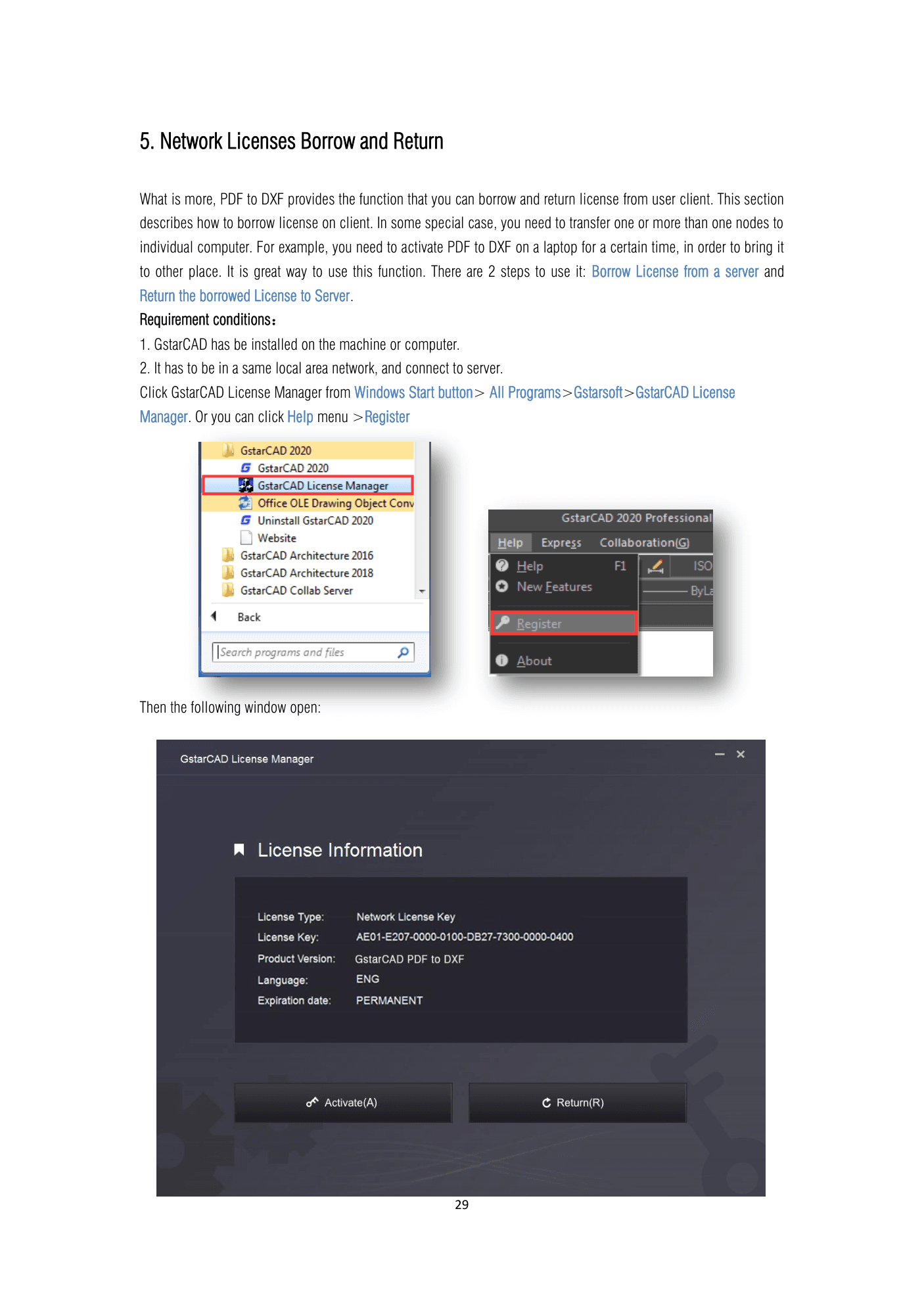
Click GstarCAD License Manager from Windows Start button> All Programs>Gstarsoft>GstarCAD License Manager. Or you can click Help menu >Register


Then the following window open:

5.1. Borrow License from a Server
- Click Activate>Borrow License (B) and select the PDF to DXF license.

- Follow the introduction on your screen. Input the Sever Number/IP and Port, click Query. And then you can attain the License Information. Input your Expiration date and select the license and click Borrow button.

'
Server Name or IP: Input the server IP address (like 192.168.0.98).
Expiration Date: Date to borrow and return, you just only need to fill in the date you return because it is counted from the date when you borrow Click.
- And then you can see the following message that means you successfully borrow the license. Click OK button and restart your software to finish the process.

5.2. Return the Borrowed License to Server
It is better to return the node to server if you do not need it.
- Click Return>Borrowed Return (B) and select the PDF to DXF license you want to return.

- Click Return, the license you borrowed has been returned.

- Click OK button to finish returning and you can see the license disappears.