GstarCAD 2027 Activation and License Return Guide
GstarCAD 2027 Activation and License Return Guide
Contents
- #GstarCAD Licensing Options
- #License Key Activation
- #USB Dongle Activation
- #Standalone License Key Return
- #Network Licenses Borrow and Return

GstarCAD Licensing Options
GstarCAD provides the flexible licensing options. GstarCAD offers Stand-alone and Network license, both are available with License key and USB Dongle.
Stand-alone license
The software is constrained to a certain host. A license is needed for each computer on which the software will be installed.
Network license
A pool of licenses is available on the server, for use in any computer on the network. You only need to have licenses for the maximum number of simultaneous users expected, not for each computer where the software will be installed.

License Key Activation
After you install GstarCAD 2027 and start up software, the system prompts you to choose Activate or Trial.
In both cases, please select a version accordingly first.

-
If you want to try GstarCAD 2027, just select Trial to get a 30-day trial of the software. During the trial period, the product performs as fully activated.
-
If you already have a valid license key, you can activate the software directly by selecting Activate to open GstarCAD License Manager. Or you can access GstarCAD License Manager from Help menu- Register.
The license key has two encryption methods: stand-alone and network activation.
Stand-alone license key activation methods: online activation and manual activation.
Network license key also supports online activation and manual activation. In addition, the network version can also be activated by borrowing a license from server.
There are four methods provides in License key tab.
Online Activation: Activate license online
Manual Activation: Activate license manually
Network License: Get license from a network license server
Borrow License: Borrow license from a network license server
Standalone License Key
You need a valid standalone license key to activate your GstarCAD.
Online Activation
Instruction: Make sure your computer is connected to the internet.
- Click License Key(L) → Online Activation (O) and select a version of GstarCAD 2027 (Professional, Standard, Plus and Education).

- Input your License Key (serial number) and click the Activate button.

Input your License Key/Serial Number here
- After a few seconds the following message appears. Click OK button to finish the activation. Then restart your GstarCAD 2027.

For Windows Server operation system, if it prompts "Session does not exist" when activate or return GstarCAD standalone license online via GstarCAD License Manager, please check the following solution:

-
Open Internet Explorer (IE) and select Internet Options and then click Trusted sites from Security tab.
-
Add the following two sites to the trusted sites.
- Click OK button to save the security settings. Then you can activate or return GstarCAD standalone license online normally.
Manual Activation
Instruction: If your computer is not connected to the internet, you can use activation file (xml file) to activate your GstarCAD 2027 manually.
- Click License Key(L) → Manual Activation (M) and select a version of GstarCAD (Professional, Standard, Plus and Education) from your computer.

- Input your license key (serial number) and click the GENERATE button to get the request file and save it.

Input your License Key/Serial Number here

- There are 2 ways to acquire license file with the saved request file:
Option 1: E-mail
You can send the request file from any computer with internet connected to your local GstarCAD distributor/reseller from whom you purchased GstarCAD products to get the license file.
Option 2: Online Service
You can access GstarCAD online service center from any computer with internet connected to download the license file.
(1) Login to GstarCAD online service center: https://license.gstarcad.net/
(2) Input your license key (serial number) and click the Login button to continue.

Input your License Key/Serial Number here
(3) In Activation tab, click the Activate button to continue.

(4) Click the Choose File button and select the request file you have saved and click the Submit button to continue.

(5) 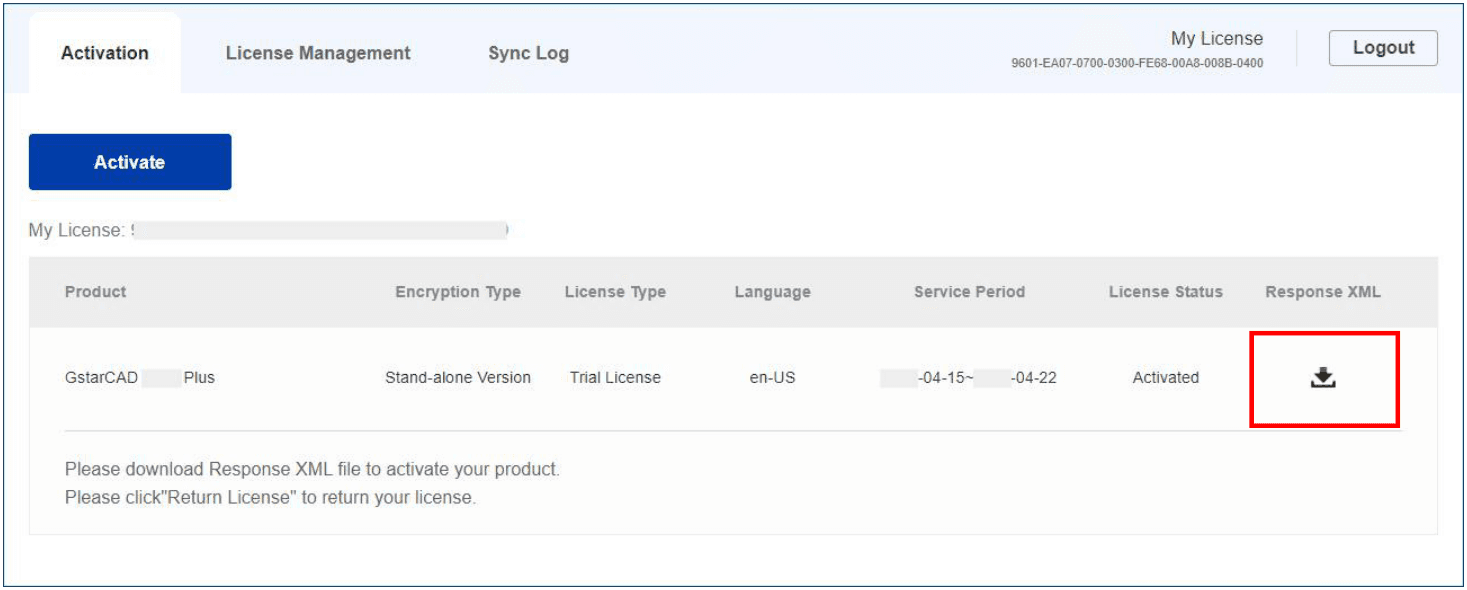
Click the Download button and save the license file (Response XML File). We recommend you to store the license file to your USB flash drive.
- Back to your computer and find out GstarCAD License Manager from Help-Register in GstarCAD 2027, please click the LOAD button and select the license file you have just downloaded and saved from another computer, and then click the Activate button.

- After a few seconds the following message window appears. Click the OK button to finish the activation. Then restart your GstarCAD.

Network License Key
GstarCAD Network enables you to share a number of GstarCAD licenses on your LAN. It gives flexibility of license floating among a working group. Before the network activation, you need to specify server computer to install GstarCAD Network License Manager to manage your network license.
For the detail, please refer to “GstarCAD 2027 Network License Manager Guide”
After GstarCAD network license key has been activated on the server computer, any client with the valid server IP and License Port can access to the server in the same LAN.
Please follow the steps below to activate your GstarCAD Network on client side:
- Click Network License (N) and select a version of GstarCAD (Professional, Standard, Plus and Education).

- Specify server IP address and the License Port, click Activate button to activate your software on client side.

USB Dongle Activation
You need to connect USB dongle to your computer to activate your GstarCAD 2027, or you can get a network license from an existing USB network license server. .
Standalone Dongle: Activate GstarCAD 2027 via USB dongle connected to the computer.
Network Dongle: Get license from a USB network license server.
Standalone USB Dongle
-
Insert your USB dongle to your computer.
-

Run GstarCAD License Manager which you can access from Help → Register tab in GstarCAD 2027. Click USB Dongle(D) → Standalone Dongle(S) and select a version of GstarCAD (Professional, Standard, Plus and Education).
Select the License Key
- Then click Activate button to finish the standalone dongle activation. Then restart your GstarCAD 2027.

Network USB Dongle
Instruction: Please make sure the Network Dongle drive is installed in the server computer.
-
Insert GstarCAD network USB Dongle into the server computer. (Any computer in the LAN).
-
Run GstarCAD License Manager which you can access from Help → Register tab in GstarCAD 2027. Click USB Dongle(D) → Network Dongle(N).
-
Select a version of GstarCAD (Professional, Standard, Plus and Education). Input the server Name/IP and click Activate button to activate on client side.

Input your Server Name/IP here
The network on server computer cannot be disconnected during use. If it is disconnected and the network Dongle cannot be found, an abnormality may occur and the drawing cannot be saved.
Standalone License Key Return
When you are going to change another computer or upgrade your system, to ensure you can use this software again after you changing the system, you need to return license before you change your system, hard disk or main board.
Online Return: Make sure your computer connect to the internet. You can return your license key online
Manual Return: There is no need of internet connection. You can manually return your license key

Run GstarCAD License Manager which you can access from Help → Register tab in GstarCAD 2027. Then the following window opens. Then click Return License (R).

Online Return
Instruction: make sure your computer connect to the internet.
- Click Online Return (O) and select the license to be returned and click the Return button.

- After a few seconds, the "Return the license successful" window opens. Click OK button to close the window. Then you can see the license you have selected to return has disappeared from License information.

Manual Return
If your computer is not connected to the internet, you can return the license key manually.
- Click Manual Return (M) and select the license to be returned.

- Click GENERATE button to get the Request file.

- Save the Request file with the extension -return.

-
Click OK button after the Request file saved.
-
There are 2 ways to return the license.
Option 1: E-mail
You can send the return request file from any computer with internet connected to your local distributor/reseller from whom you purchased GstarCAD products to get the return file.
Option 2: Online Service
You can access GstarCAD online service center from any computer with internet connected to download the license file.
- Access the link https://license.gstarcad.net/ and login with the GstarCAD license key.

Input your License Key/Serial Number here
- Click License Management tab, and click Return License button.

- Choose the request XML file you saved and Click Submit button to upload the request file.

- Download the Response XML from License Management tab.

- Go back to GstarCAD license Manager, Click .LOAD to load the -resp-return.xml file and click Return button to return GstarCAD license.

- Then you can see the license key disappeared in the License Information list.

Network Licenses Borrow and Return
What is more, GstarCAD 2027 provides the function that you can borrow and return license from server at user client. In some special case, you need to transfer one or more than one nodes to individual computer. For example, you need to activate GstarCAD 2027 on a laptop for a certain time. It is great flexibility to use this function.
There are 2 steps to use it: Borrow License and Borrowed Return.
Requirement conditions:
-
Ensure GstarCAD 2027 has to be installed on the computer.
-
It has to be in a same local area network, and connect to server.
Click Help → Register to open GstarCAD License Manager in GstarCAD 2027.

Then the following window opens.

Borrow License from Server
Please follow the steps below to borrow license from server on client side.
- Click License Key(L) → Borrow License (B) and select a version of GstarCAD (Professional, Standard, Plus and Education).

- Input your Sever Number/IP and License Port, click Query. And then you can obtain the License Information on the server. Input your Expiration date and select the license accordingly and click Borrow button.

Select the license key
Server Name or IP: Input the server IP address (like 192.168.0.66).
Expiration Date: Date to borrow and return. You just only need to fill in the date you return because it is counted from the date when you Borrow click, or you can choose or set the duration.
- And then you can see the following message that means you successfully borrow the license. Click OK button and restart your software to finish the process.

Borrowed Return
It is better to return the borrowed node to server if you do not need it.
- Open GstarCAD License Manager which you can access from Help menu-Register and click Return License (R) button.

- Click Borrowed Return (B) and select the license you want to return. Then Click Return button.

Select the license key
- Click OK button to finish the license returning and you can see the license you returned disappears.